Microcontrollers
How to make a PIN/Password Keypad with Arduino IR Remote
Overview
In this article, I will explain how to make a password or pin keypad with Arduino IR remote.
Required Materials
- An Arduino board
- IR Sensor
- Any Infrared remote (a TV remote can work)
- At least 5 Male to Male Jumper Wires
- A breadboard
Circut / Connection
Source Code
Here is the source code of this project. You can also download from the GitHub repository.
#include <IRremote.hpp> // Include IR Remote library
const int receiverPin = 2; // Set the IR sensor pin
String currentKeys = ""; // String holding currently pressed keys
const String password = "#1249"; // Your password
int failureCount = 0; // Failure count integer
void setup() {
Serial.begin(9600); // Serial Monitor begin
IrReceiver.begin(receiverPin, ENABLE_LED_FEEDBACK); // Start receiving data from the IR sensor
}
void loop() {
if (failureCount >= 5) { // if the failure count is 5 or more
Serial.println("5 failed counts! locking."); // print message to serial
IrReceiver.stop(); // stop the sensor
delay(5000); // sleep for 5 seconds
failureCount = 0; // reset the failureCount
currentKeys = ""; // reset pressed keys
IrReceiver.begin(receiverPin, ENABLE_LED_FEEDBACK); // start the sensor again
Serial.println("Unlocked."); // print message
return; // clear any leftover data
}
if (IrReceiver.decode()) { // receive data from the sensor
long int decCode = IrReceiver.decodedIRData.decodedRawData; // decode the received data
Serial.println(decCode, HEX); // print data
char keyPressed = 'X'; // char holding pressed keys. X for default
if (decCode == 0xBA45FF00) keyPressed = '1'; // decoded code for 1 key
else if (decCode == 0xB946FF00) keyPressed = '2'; // these values are different for you, you need to first upload the code,
else if (decCode == 0xB847FF00) keyPressed = '3'; // note all codes for buttons,
else if (decCode == 0xBB44FF00) keyPressed = '4'; // and replace these values with yours.
else if (decCode == 0xBF40FF00) keyPressed = '5'; // all data must start with 0x,
else if (decCode == 0xBC43FF00) keyPressed = '6'; // for example if you receive EA15FF0, you need to put 0xEA15FF0 to the if-else block.
else if (decCode == 0xF807FF00) keyPressed = '7'; // try to directly aim the remote to the IR sensor for the correct code.
else if (decCode == 0xEA15FF00) keyPressed = '8';
else if (decCode == 0xF609FF00) keyPressed = '9';
else if (decCode == 0xE619FF00) keyPressed = '0';
else if (decCode == 0xE916FF00) keyPressed = '*';
else if (decCode == 0xF20DFF00) keyPressed = '#';
else if (decCode == 0xF708FF00) {currentKeys = ""; Serial.println("Clearing pressed keys");} // I used one of my keys for cleaning all pressed keys
else if (decCode == 0xA55AFF00) { // I used one of my keys for clearing the last entered character
if (currentKeys.length() > 0) { // if the current clicked keys are bigger than zero (this is required to prevent problems)
currentKeys.remove(currentKeys.length() - 1); // remove the last character entered from the clicked keys
}
Serial.print("Current entry: ");
Serial.println(currentKeys); // print clicked keys
}
if (keyPressed != 'X') { // if we got a known button click (not X)
currentKeys += keyPressed; // add that clicked key to the currentKeys string
Serial.print("Current entry: ");
Serial.println(currentKeys); // print clicked keys
}
if (currentKeys.length() >= 10) { // to block attacks, I set the limit of the password to 10.
Serial.println("Pin too long! Reseting."); // print too long message
currentKeys = ""; // reset clicked keys
failureCount++; // increase failure count by 1
Serial.print("Failed attempts: ");
Serial.println(failureCount); // print failure counts
}
if (decCode == 0xE31CFF00) { // if the OK button is pressed (the button to confirm/enter the password)
if (currentKeys == password) { // if the current entered keys match our hardcoded password
Serial.println("ACCESS GRANTED"); // grant access!
failureCount = 0; // reset failure count
// here you can do anything like blinking a led, a buzzer, using a relay etc.
}
else { // if not equal to password
Serial.println("ACCESS DENIED"); // deny access!
failureCount++; // increase failure count
Serial.print("Failed attempts: ");
Serial.println(failureCount); // print failure count
}
currentKeys = ""; // reset clicked keys
}
IrReceiver.resume(); // continue receiving data from the IR sensor
}
}
Description
This is a simple IR remote PIN/Password project made using Arduino. With this project, you can run specific block of Arduino code when you enter your PIN using your remote. For example, you can light up a led, use a relay when the correct password is entered. It can lock the system after 5 wrong password attempts. Please note that, this can be very useful on a hobby project, but IR codes can be copied very easily using devices like Flipper Zero. For real world projects, you may need to use other techniques, such as RF remote. But this is a both fun and easy way to learn IR sensors and remotes.
Connection
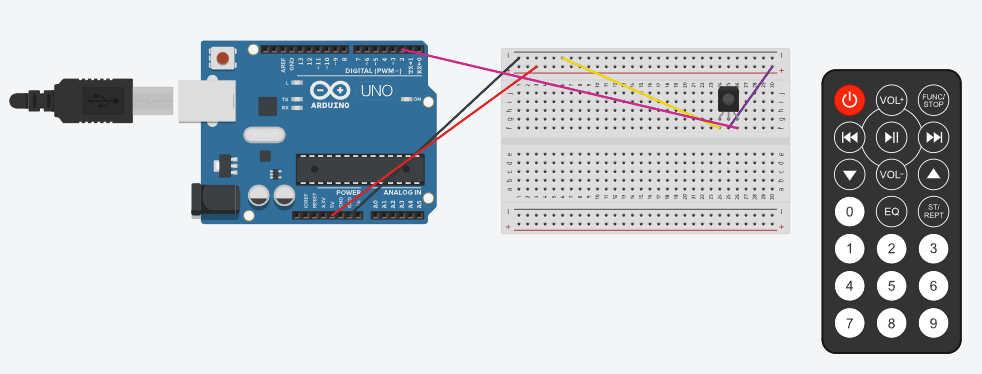
You need 5 Male to Male Jumper Wires for this project. You need to connect one of the wires to the GND pin of the Arduino and to the - power rail of the breadboard. After that, take another wire and connect it to the 5V pin of the Arduino and the + power rail of the Arduino. Now you need to connect the IR sensor to the breadbord. Then, connect the first pin (from the left and front) of the IR sensor to the - power rail of the breadbox, connect the middle pin to the + power rail and finally connect the last pin of the IR sensor to the Digital 2 pin of the Arduino. You can use another Digital pin but do not forget to change it at the code. You can also look to the connection circut at this page or GitHub.
Installing IR Remote Library
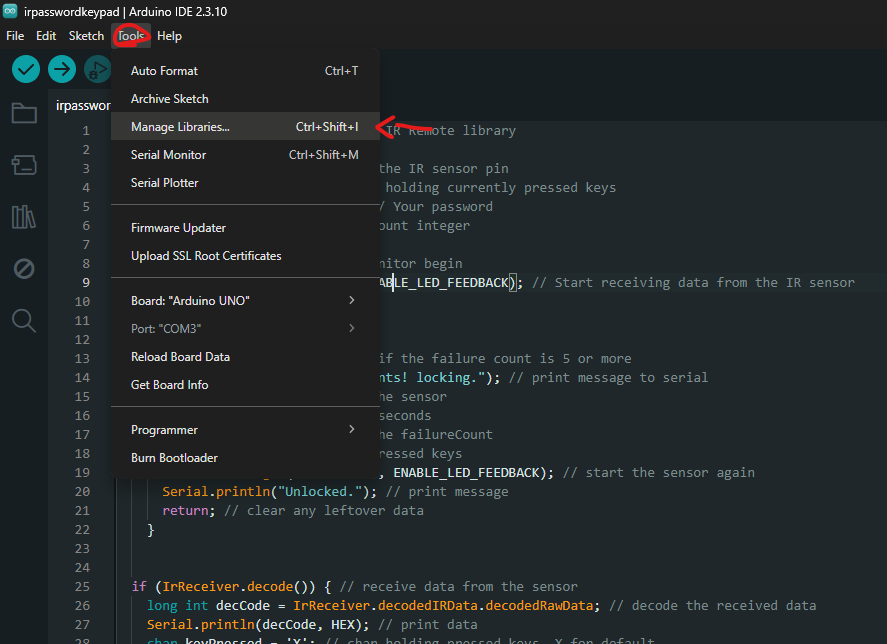
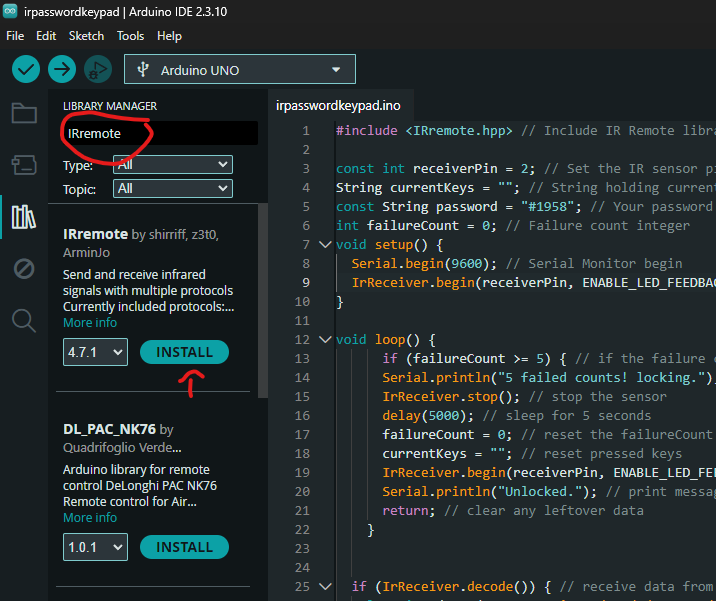
For this project, you need to install the IR Remote Library from the Arduino IDE. It is very easy to do. Open your project, click to the "Tools" at the top menu and then click to the "Manage Libraries..." button. You can also use CTRL + SHIFT + I keyboard shortcut to open the Library Manager. Then, write "IRremote" to the search bar and find the IRremote from shirriff, z3t0, ArminJo. Click "Install" to install that library.