Blocking ClickFix Attacks on Windows with ClickShield
Overview
In this article, I will explain how to protect your computers from the ClickFix attack, one of the most common phishing attacks today.
Description
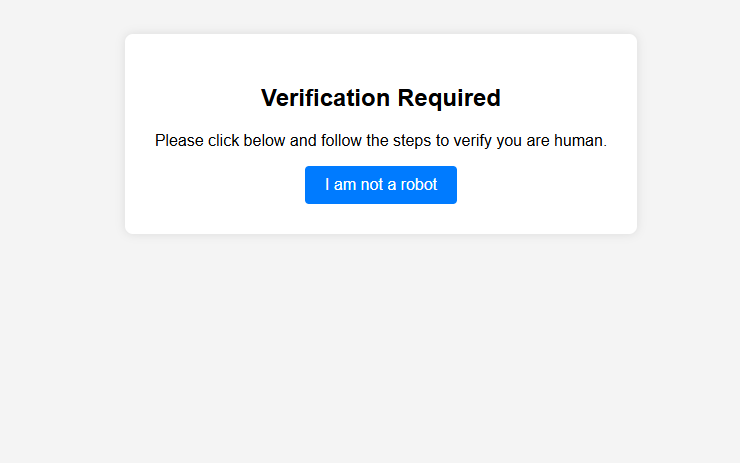
First of all, what is a ClickFix attack? ClickFix attacks are one of the most common phishing attacks today. Most of the time, it looks like a captcha, it requires the user to verify that they are not a robot. But then, it wants the user to click Windows + R to open the Run dialog, and click CTRL + V to paste and click enter to verify. The fake captcha automatically copies a malicious code, most of the time PowerShell or LOLBINs (such as mshta, certutil) . When the user runs it, their computer gets infected with malware. No real website asks the user to run a command for captcha verification. Some variants ask the user to run the copied command on the Command Prompt or Terminal. Also, ClickFix is a cross platform phishing attack. It can work on any computer OS.
Even though it sounds like a simple method, people fall for them. JavaScript code in the phishing website automatically copies the malicious command to the clipboard. And the malicious command is often hard to detect and understand. They use built in Windows tools, uses encoded and obfuscated commands.
ClickShield offers three protection features against ClickFix and other similar phishing attacks.
Why Attackers Prefer ClickFix Over Traditional Payloads
Traditional phishing attacks that rely on downloading malicious executable files are less effective today due to modern antivirus and browser security controls. Because of this, attackers prefer executing fileless commands that do not require an immediate disk download. When a user executes a malicious command without reviewing it, the script can establish a backdoor or retrieve a remote payload from the attacker's Command and Control (C2) server. This execution relies on legitimate Windows binaries (LOLBins) and native shell commands, which often evade traditional endpoint security filters.
How ClickShield Protects Your Computer
ClickShield utilizes native Windows API functions to monitor clipboard changes in real time, inspecting copied text against known malicious command patterns. If a suspicious string is detected, ClickShield raises an immediate warning. Additionally, it blocks internet access for routinely abused LOLBins via Windows Firewall—ensuring that even if a command like mshta http://malicious-site is accidentally triggered, the binary cannot connect outbound.
Note: ClickShield functions as a preventative tool designed to block initial execution; it is not an antivirus scanner and cannot remediate an operating system that is already infected.
Downloading ClickShield
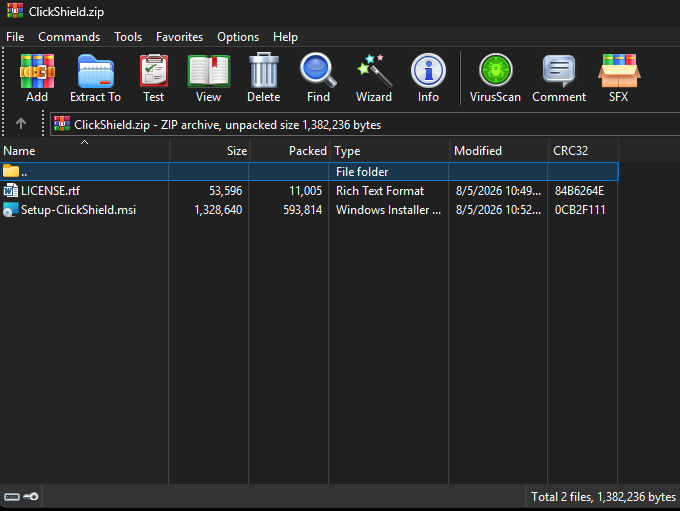
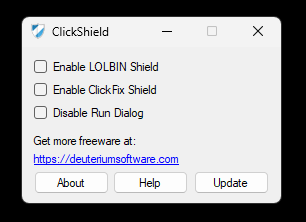
First, you need to download ClickShield tool. You can download from the button above. After downloading the ZIP file, you need to extract the setup inside of it and run it. After installation (it is a straightforward process), you need to click to the generated ClickShield shortcut at the desktop. After that, ClickShield settings window will open.

Features & Options
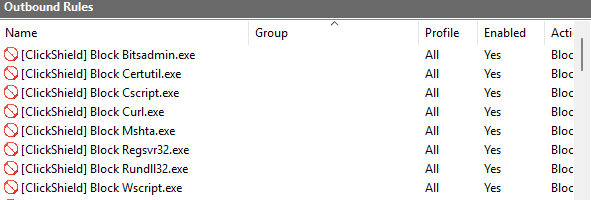
LOLBIN Shield: This option blocks those LOLBINs from accessing the internet via Windows Firewall: "bitsadmin, certutil, cscript, curl, mshta, regsvr32, rundll32, wscript". Those LOLBINs are common on ClickFix attacks. Not only in ClickFix, but in advanced fileless malware, they use those binaries because they are official but vulnerable. Most of the time, those binaries shouldn't access to the internet. This is why ClickShield blocks them.
ClickFix Shield: This is the main feature of the ClickShield. When this option is enabled, a component of ClickShield: Clipboard Supervisor runs. When this option is enabled, the tool monitors your clipboard for changes at background. It automatically starts with Windows and it continues to run even if you close the ClickShield GUI. When it detects a change on the clipboard, it scans and runs a decision tree to decide if it contains malicious commands, that indicated a ClickFix attack. If it detects a malicious command on the clipboard, it shows an alert to the user and prevents the Run dialog from opening until the user clicks OK on the warning message.
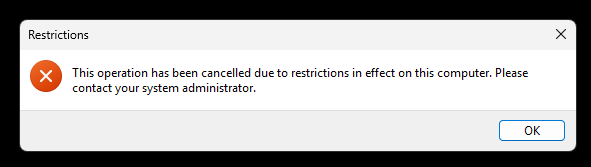
Disable Run Dialog: This option disables the Run dialog (opens when Windows + R clicked), preventing most of the ClickFix attacks. Please note that power users and developers use Run dialog frequently so disabling it on a developer computer might not be a good choice. But it can be useful on a workplace, as your employees might not need the run dialog. You can also disable Run dialog via Group Policy Editor on Windows Pro and Education, and via Registry Editor on Home but ClickShield makes it much simpler by making it "one click". After changing this settings, ClickShield will ask you to restart File Explorer for the changes to take effect.
Trying to Open The Run Dialog
Testing It
I created an example HTML that mimics a ClickFix attack. I will try this while ClickFix Shield is turned on.
Attack Blocked
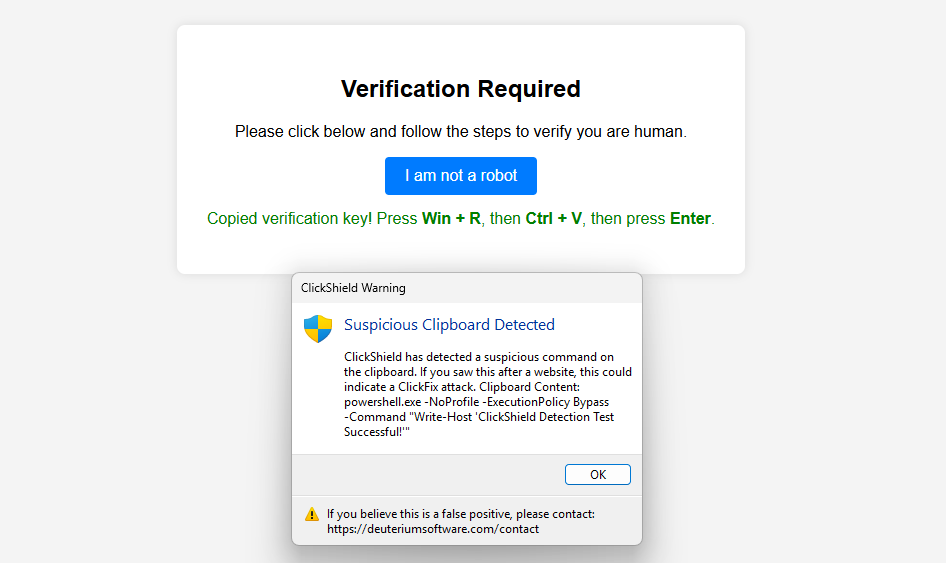
After clicking the fake verification button, ClickShield opened a warning message, with the contents of the clipboard. While the warning message is open, Run dialog cannot be opened by the user.
Updating
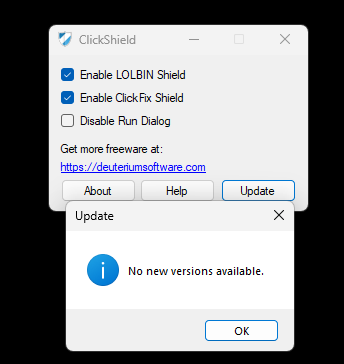
The tool comes with check for updates feauture. You can click the Update button to check for updates. It will open the website if it detects a new version. Please always keep this software updated for your protection.
Important Warning for Users
Sadly, ClickShield causes some false positives with antiviruses like Windows Defender. I have sent reports, but it is still being detected. You can add an exclusion to your antivirus. ClickShield does not contain any kind of malware, but this can happen because I don't have a digital certificate. Please note that no software in the world is 100% perfect so there can be false positives or misses. You can always contact me via Contact page at the website.