How to Shutdown Computers Remotely on Windows using NetSleep
Overview
In this article, I will explain how to shutdown, restart and perform similar activities on the LAN (Local Area Network) with the free tool NetSleep.
Description
In areas with a lot of computers, or just your next room, you may want to shutdown, restart or perform similar activities from one central computer. You have Wake-on-LAN to turn on, but there is no Sleep-on-LAN. NetSleep solves that problem! But first of all, why you should use NetSleep instead of direct Windows commands like shutdown -i?
Remotely shutting down a computer in a Windows operating system can be very hard. Firewall blocks, Windows Authentication System, no GUI, remote registry, SMB etc. etc. NetSleep fixes this problem with a server. You just install NetSleep server into all computers that you want to remotely shutdown, allow firewall, add computers to the management client and now from a list, you can Shutdown, Restart, Hibernate, Sleep, Lock and Logoff your computers. You can select all computers from the list, or choose manually.
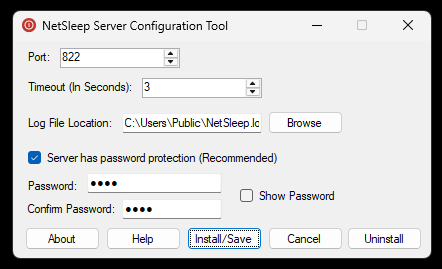
NetSleep makes remote shutdown process very easy. You only need to choose an UDP port (822 default), choose a log file location, timeout (3 seconds default) and optionally a password. The password prevents unauthorized users from shutting down your computer. The security system works with tokens. It is also safer than opening port 445 (SMB), as SMB is heavily exploited by ransomware. The tool uses UDP instead of TCP. UDP does not establish a connection, which means that you are not wasting network or system resources to an always open TCP port. You need to install NetSleep server to all computers that you want to remotely shutdown or manage. You can download it from the button above. After setup process, run "NetSleep Server Configuration Tool". After configuration, you can click "Save" to save the settings and install the service to the system.
Using the Client
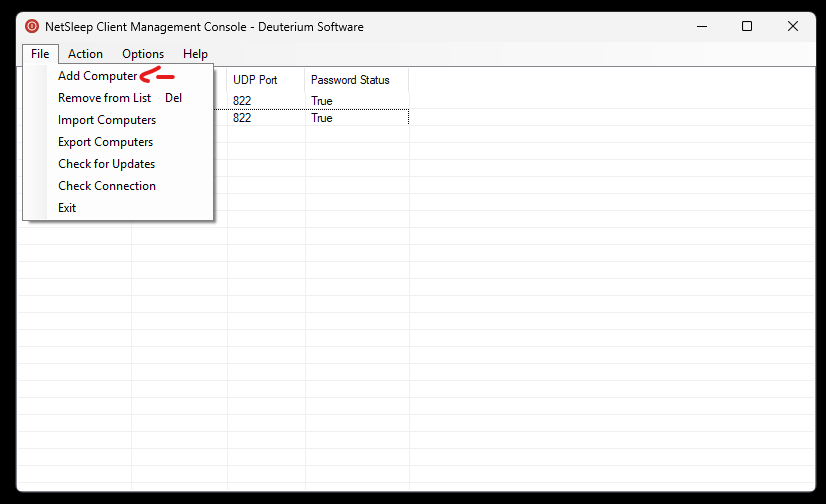
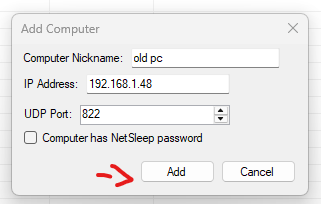
For management. You need to download NetSleep Client Windows from the button above. After installing NetSleep Client Windows, you can add a computer by File->Add Computer. Here, specify the server ip (please disable DHCP!), server UDP port, a nickname for your computer and specify if you have a NetSleep password on the server.
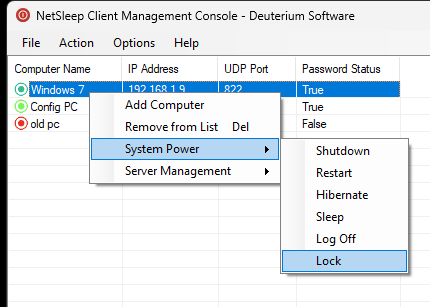
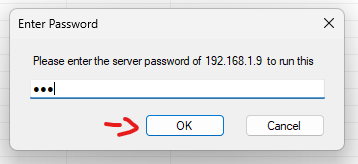
After adding the server to the list, you can right click to the server or use Actions tab at top menu, and use System Power section to shutdown, restart, sleep, hibernate, lock and logoff the computer. If you specified a password to the server, the client will ask for it. Operation will fail if you enter the wrong password.
Checking Connection
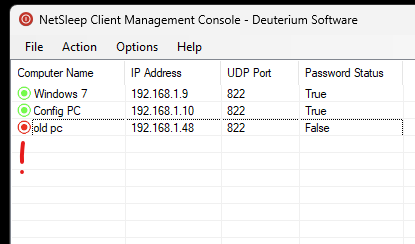
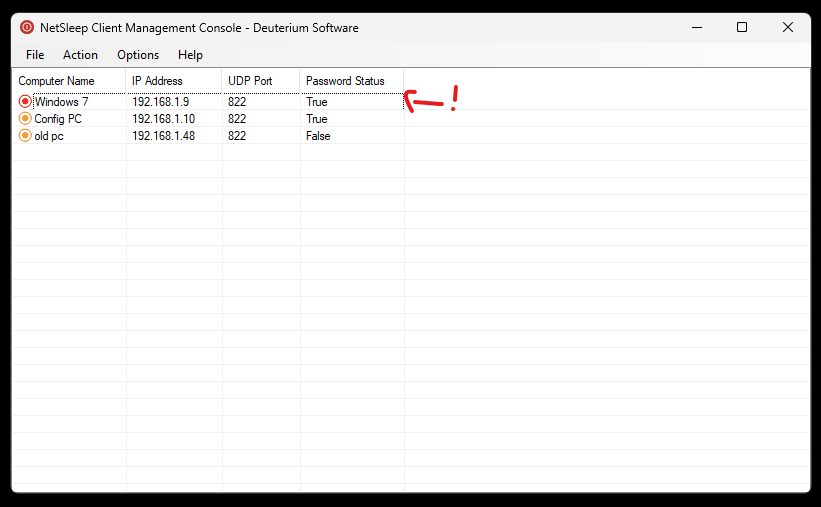
By default, NetSleep shows connection status by colors. Green circle at left of the list means "UDP port is open, you can connect", Yellow circle means "Checking..." and red circle means "Test failed, port or the server is closed or firewall is blocking the port". You can refresh the connection info via File->Check Connection.
Troubleshooting
Most of the time, connection with NetSleep fails due to misconfigured firewall. Please make a sure that you have allowed outbound connection to the client, which Windows allows by default, and allowed inbound connection to the server on both Public and Private networks. You should also, allow UDP port 822 or your selected port. You can allow UDP port 822 with this CMD command:
And you can allow the NetSleep Server Service with this CMD command (change C:\Path\To\NetSleep Server.exe with the path of the NetSleep Server Service, as it is portable.
You must run these commands on an elevated Command Prompt.
Version v1.2.1 and later creates firewall rules automatically. Don't forget to keep the application updated for new features and bug fixes.
Still Experiencing Problems?
Feel free to contact me via Contact page at this website.